Import a bank statement
Upload a supported statement, map its columns when needed, and review duplicate rows before import.
Upload a supported bank statement and review its pending preview before Cybooks starts an import.
Before you start
You need permission to view bank accounts and manage imports. Select the bank account that the statement belongs to.
Upload a statement
- Open the selected account and choose Bank feed.
- Open Manage account and select Import bank statement.
- In Upload bank statement, choose the account and statement file.
- Continue to Preview & validate.
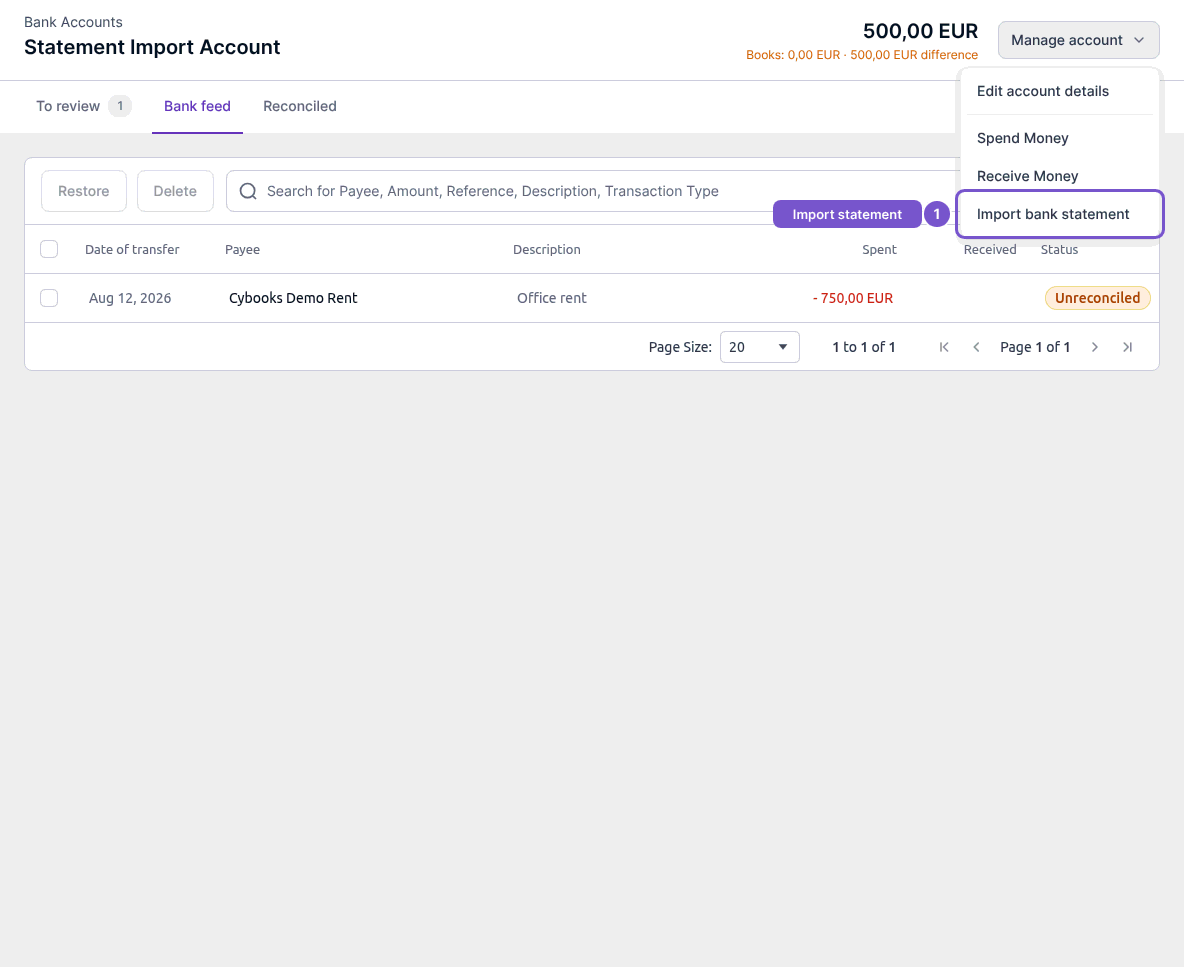
The uploaded rows stay in a pending preview. Cybooks does not start the import until the final action.
Map statement columns
If automatic mapping is incomplete, the wizard shows Confirm column mapping.
- Map the required Date and Amount columns.
- Review any optional column mappings.
- Continue to produce the pending preview.
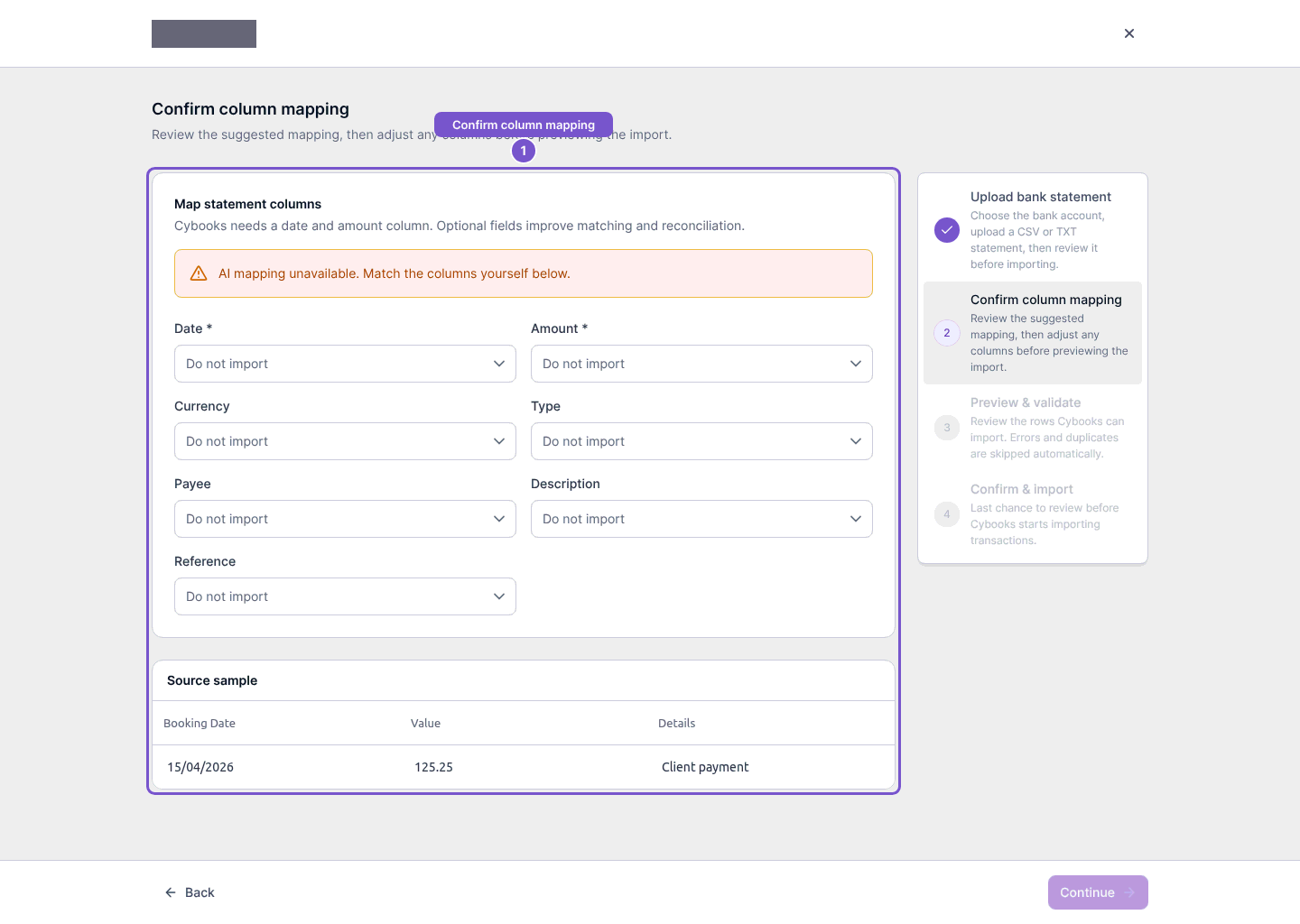
Confirming the required date and amount columns advances the statement to preview without starting an import.
Review duplicate rows
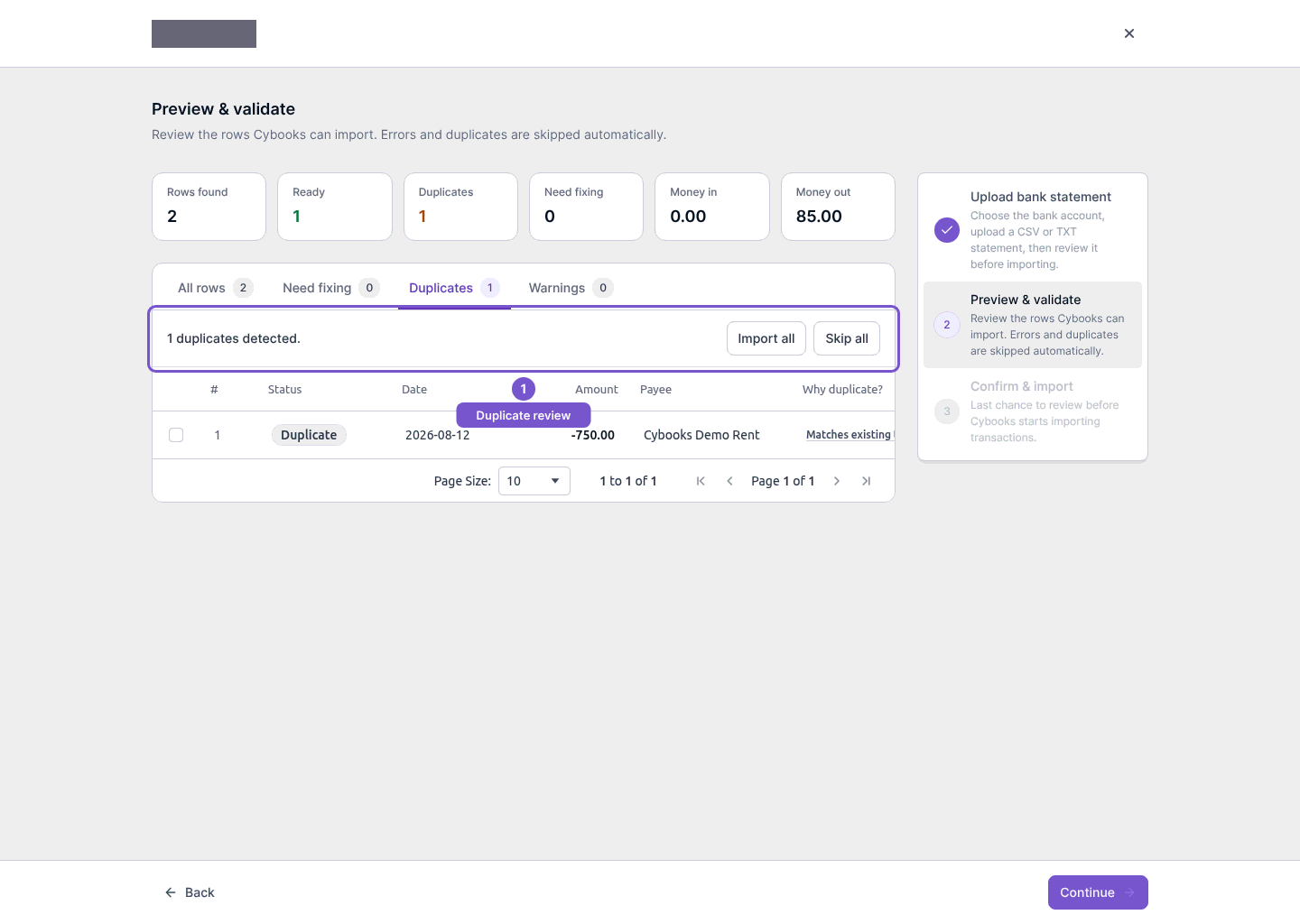
In Preview & validate, open Duplicates to review rows that match existing transactions.
Duplicate rows stay skipped unless you explicitly choose the per-row option to import one anyway. No import job starts while you are reviewing the preview.