
Review employees and request time off
Find employee records and use the time off request form with the appropriate access.
Open Employees to find the employee register. Add employee opens the create form when you have permission; opening it does not save an employee.

Open the intended employee and review the available record sections: Overview, Personal, Contracts, Deductions, Payslips, Time off, Documents, Tax compliance and Tax declaration. Check that you are in the correct record before editing sensitive information. Opening a section does not save changes to it.
Add time off
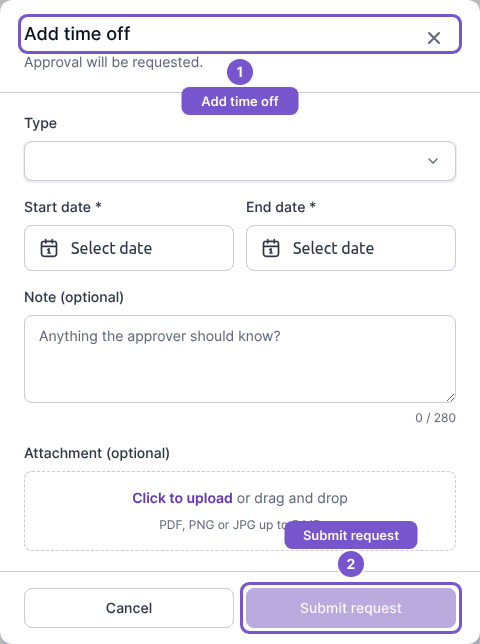
- In the employee's Time off section, select Add time off.
- Choose Type and enter Start date and End date.
- If the policy allows half days, select the relevant days and morning or afternoon portions.
- Review the working-day summary and any displayed availability. Add an optional note of up to 280 characters and any required supporting information.
- Read whether approval will be requested or the time off will be booked automatically.
- Select Submit request only when the details are ready. Cancel closes the form without submitting the request.
Previewing dates does not book leave. The summary counts working days. When a finite balance is visible, the availability shown accounts for pending submitted requests and the proposed days. Some policies hide the balance or do not use a finite allowance, so a working-day summary without a balance is expected.
A hidden balance is still subject to applicable policy limits when submitted or approved. Negative balances follow the policy's allowed floor; do not assume a preview guarantees approval. Resolve any validation, attachment upload or service error before proceeding.
A submitted request is reported as Time off requested. An approved result is reported as Time off booked. After success, the Time off page refreshes balances, requests and holidays.