
Upload and review a bank statement
Select an account, check column mapping and review duplicates before importing.
Start from the account that should receive the statement so you can check its destination before importing.
Upload the statement
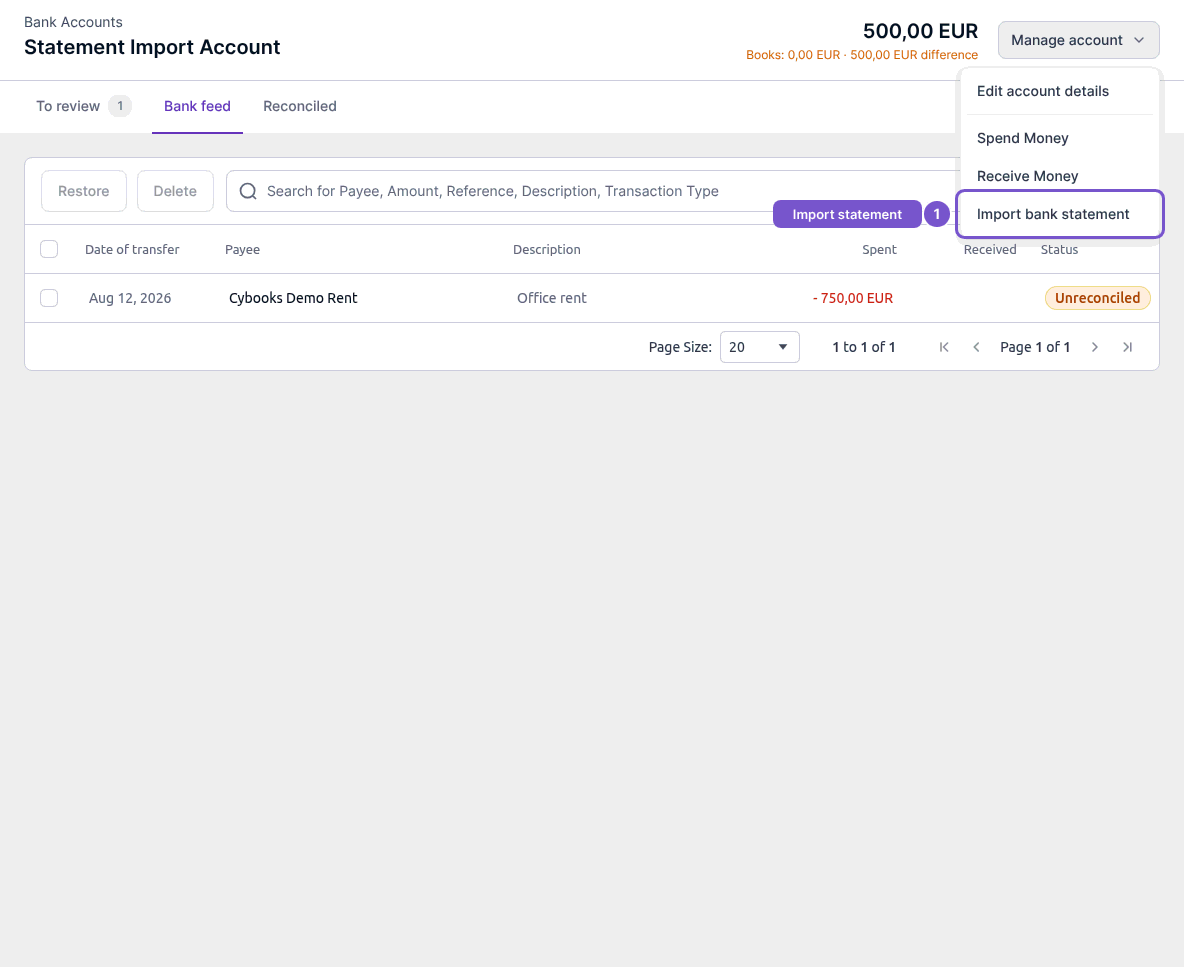
- Open the bank account and select Bank feed.
- Open Manage account and choose Import bank statement.
- In Upload bank statement, check the Bank account selection and choose the statement file.
Uploading prepares a pending preview. It does not start the final import.
Check the columns
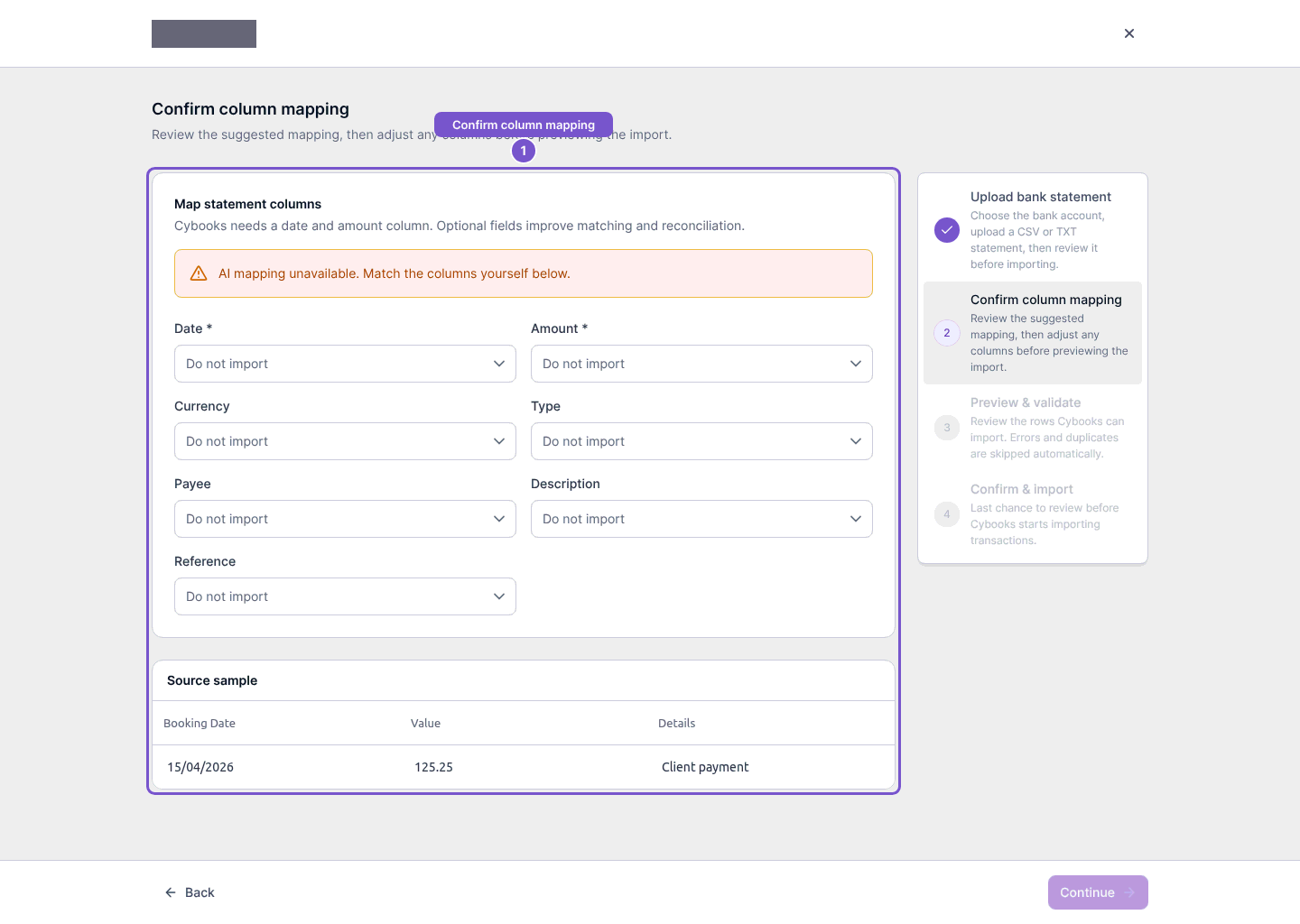
If Confirm column mapping appears, review the suggested columns. Date and Amount are required. Compare the source sample with the mapped preview, adjust any incorrect selection, then use Continue to reach Preview & validate. Confirming mapping still does not import transactions.
Review duplicates and errors
In Preview & validate, check Ready, Duplicates and Need fixing. Detected duplicates are skipped automatically. Review the matching row before using an import-anyway override; leave it skipped when it is already in the account.
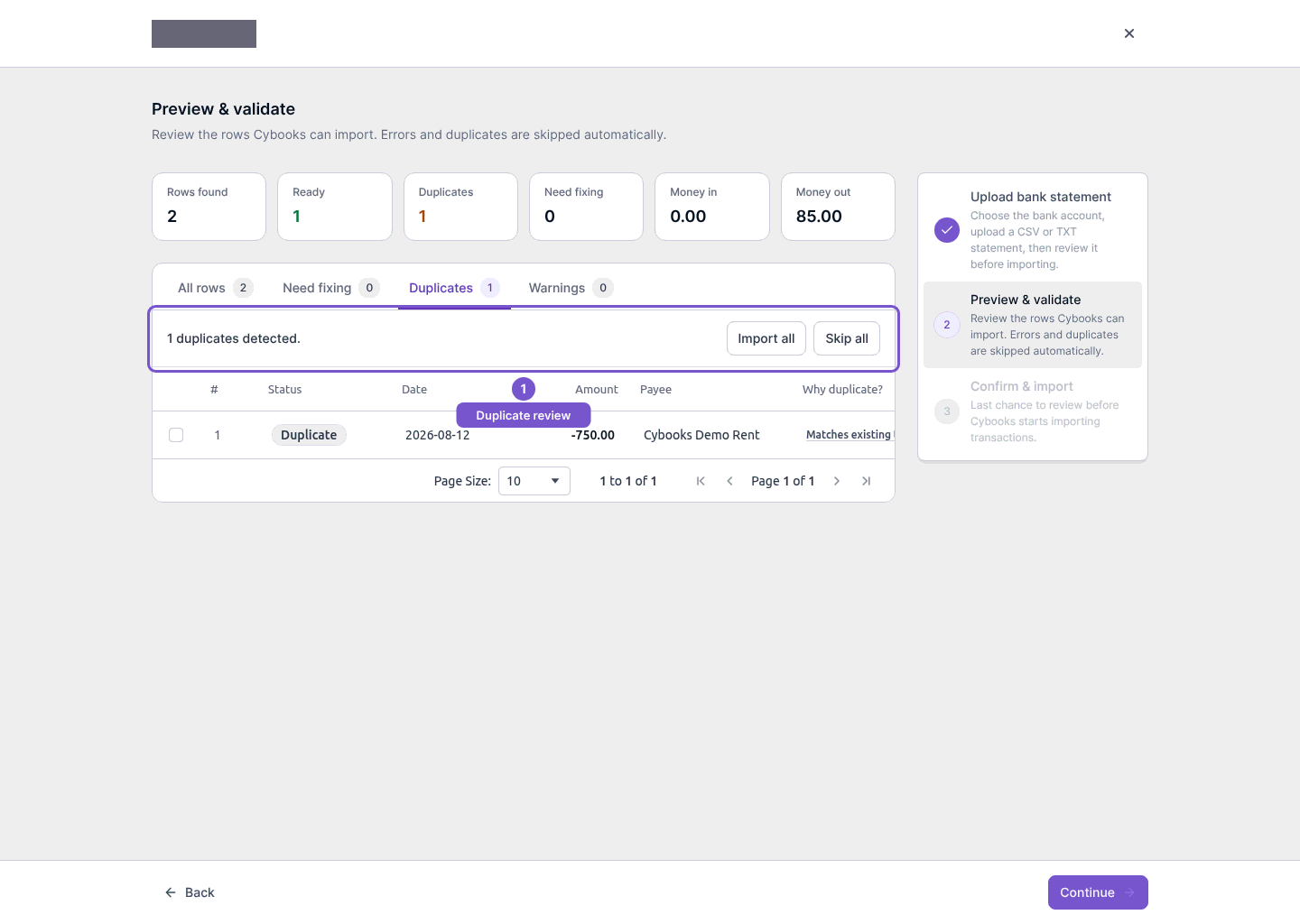
Proceed to the final confirmation only after checking the preview. A PDF statement may need a separate review for its existing import run; opening that review requires import-management access and is not itself a completed import.