
Find clients and review their workspace
Open the practice client list, prepare an Add a client form, and find client-specific records.
Clients brings together the companies your practice works with. Start here to find the right company before opening private records.
Find a client
- Open Clients in the accountant workspace.
- Search the client list for the company you need.
- Select the client to open its workspace. Check the client identity before reviewing its records.
Prepare a new client
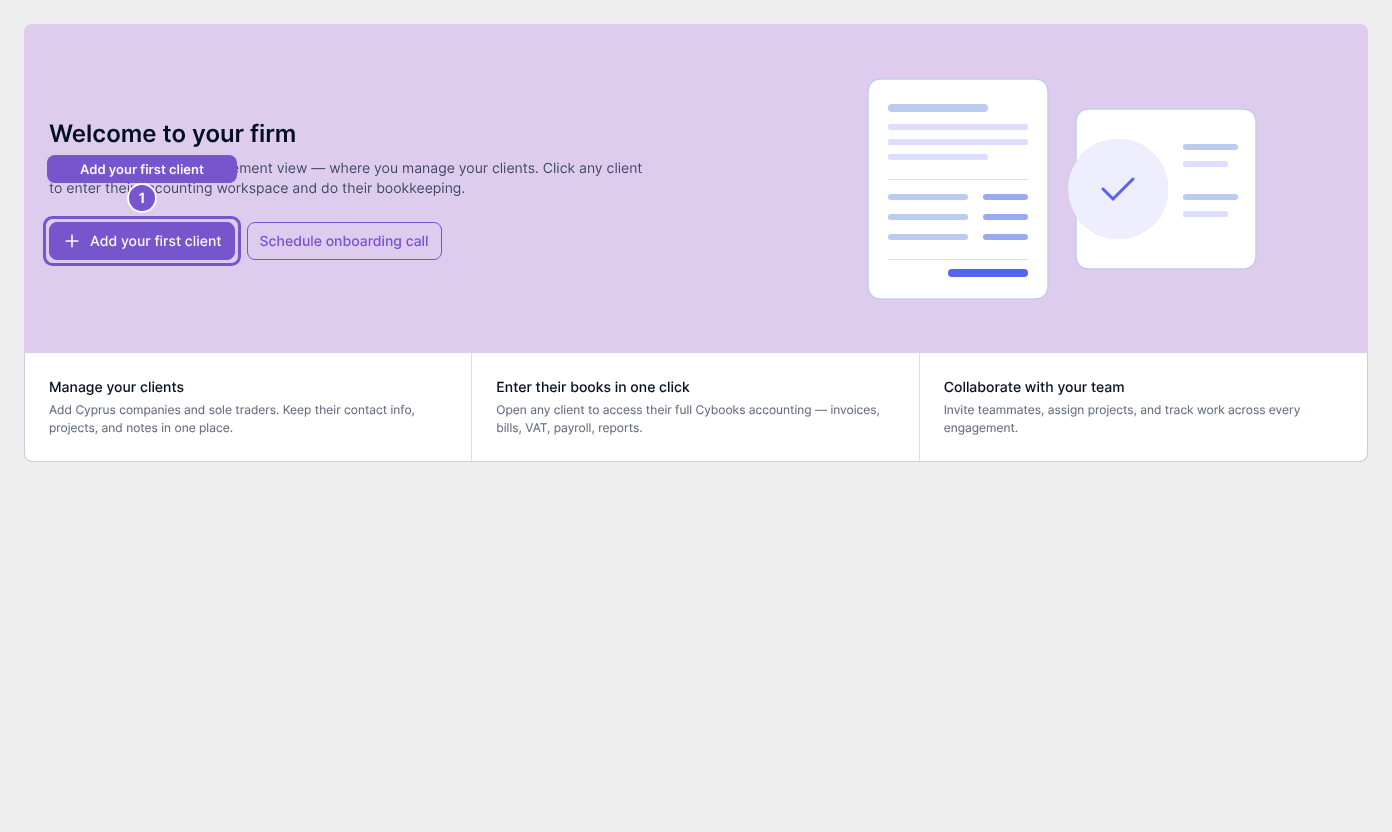
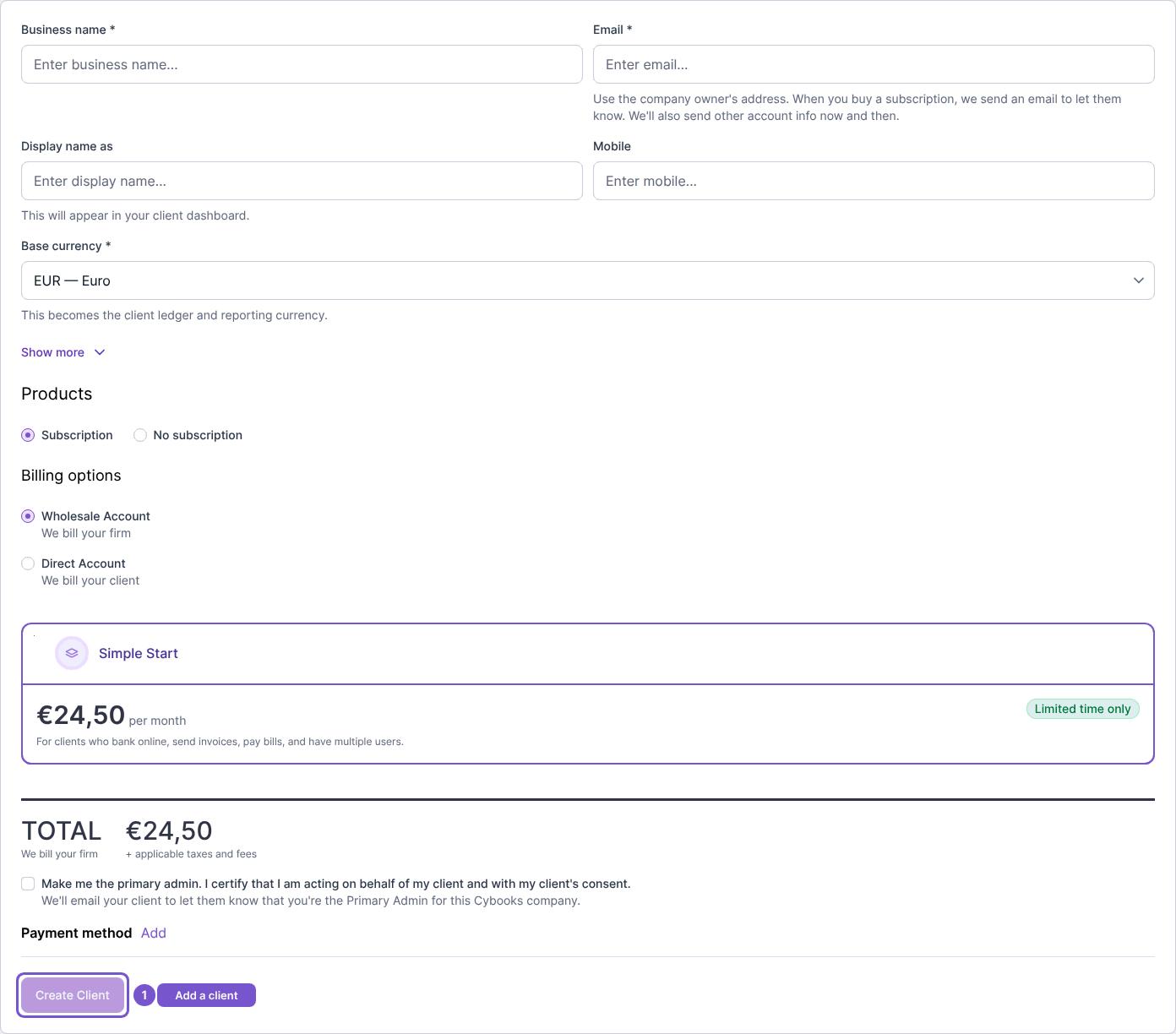
If your role allows client creation, use Add your first client on an empty list or the add-client action above the list. The Add a client form includes Business name, Email, display name, Mobile and Base currency. Use the company owner's email address and review the base currency carefully: it is the client's ledger and reporting currency.
Review the Products and Billing options before using Create Client. Wholesale Account bills the firm; Direct Account bills the client. Opening the form alone does not create a client or buy a subscription.
Review a client's records
Within the selected client, use the available detail tabs to find the information you need. Vault, Documents, Emails and Notes have their own access requirements. Activity, Emails and Transactions are available only when enabled for your practice.
When KYC & AML is enabled and you have access, open that tab for the selected client. Upload your client's document introduces the identity-document upload area. Check the client before selecting any private file; opening this guidance does not upload a document or complete a compliance check.

If a tab or add-client control is missing, ask your practice administrator to check the relevant access and feature availability. Client-view access alone does not grant every client action.